
What is WhatsApp Status and How to Use It

WhatsApp Status lets you share your moments, thoughts, and experiences with your contacts through photos, videos, and text updates that disappear after 24 hours.
But why settle for the ordinary when you can add an extra touch of creativity and flair to your WhatsApp Status updates? That’s where the incredible post maker app comes into play!
In this comprehensive guide, we will delve into what is WhatsApp status and how to use it effectively.
What is WhatsApp Status?
WhatsApp Status is a feature that lets users share moments, thoughts, and updates with their contacts in the form of text, photos, videos, or GIFs.
These status updates automatically disappear after 24 hours, making them perfect for sharing temporary content or quick glimpses into your life.
WhatsApp Story serves as a fun and engaging way to keep your friends and family informed about what’s happening with you.
Types of WhatsApp Status
WhatsApp offers several types of updates:
- Text Status: You can post text updates with colorful backgrounds and fonts to convey your thoughts or feelings.
- Photo Status: Share photos or images from your gallery to provide visual updates.
- Video Status: Upload short video clips to showcase your experiences.
- GIF Status: Add humor and emotion to your statuses with animated GIFs.
How to Use WhatsApp Status?
How to Create a Status on WhatsApp
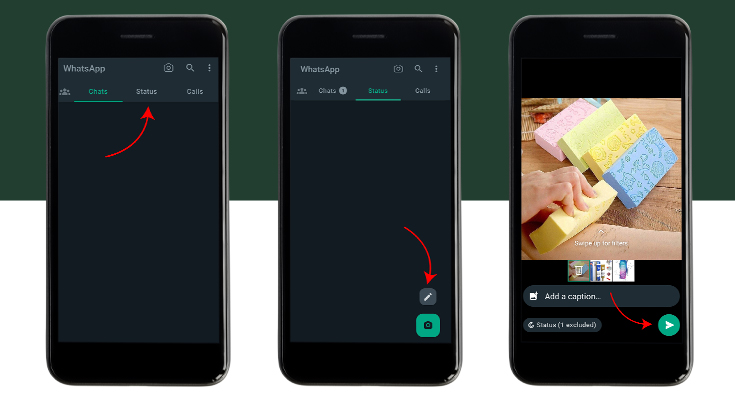
Creating a status is easy:
- Open WhatsApp and go to the Status tab.
- Tap on “My Status.”
- You can now add text, photos, videos, or GIFs to your status.
How to Post Text and Links
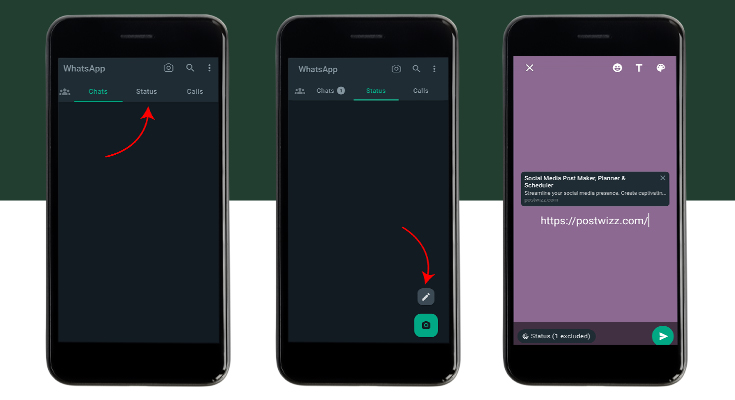
To share text or links:
- Tap on the text icon.
- Type your message or paste a link.
- You can format text and add links easily.
How to Post Photos and Videos
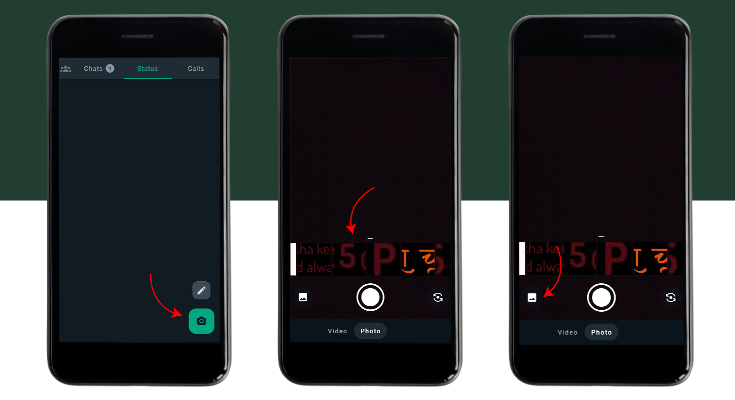
To share images and videos:
- Tap on the camera icon.
- Capture a new photo or video or choose one from your gallery.
- Edit it if needed and add a caption.
How to Post GIF Status
To post a GIF:
- Tap on the Status/GIF icon.
- Search for a GIF or choose one from your gallery.
- Add any text or stickers if you like.
How to View WhatsApp Story
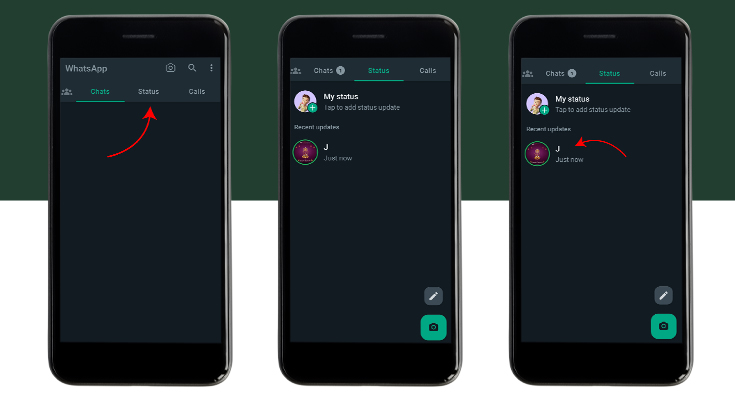
To view your contacts’ statuses:
- Go to the Status tab.
- You’ll see a list of their statuses. Tap to view.
How to Reply to a Status
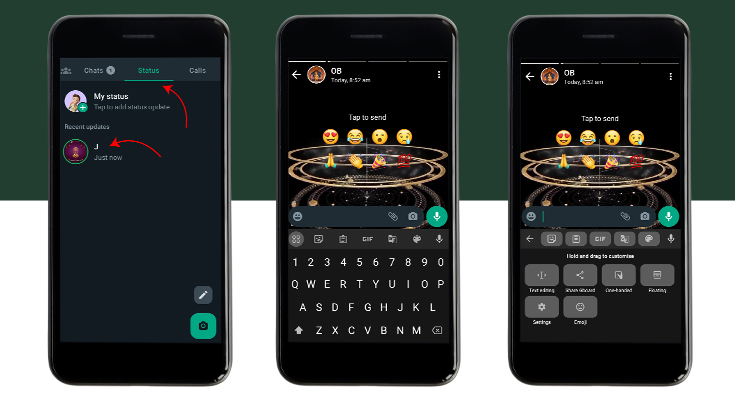
To reply to a status:
- Tap on “Reply” below the status.
- Type your response and send it as a chat.
How to Add Emojis and Stickers on WhatsApp Status
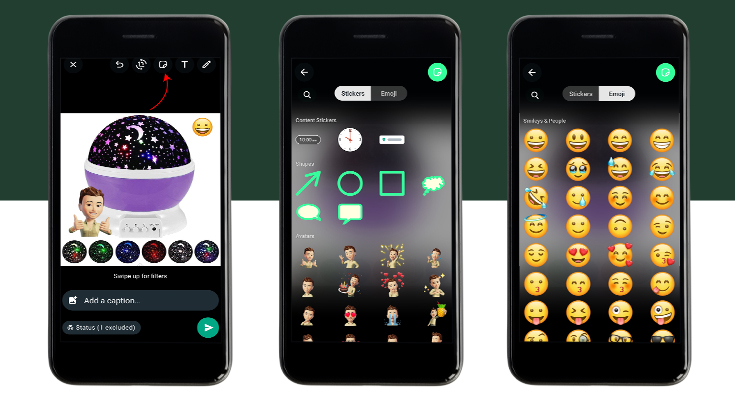
Enhance your status with emojis and stickers:
- After creating your status, tap on the smiley icon.
- Choose emojis or stickers to add them to your status.
How to Hide a WhatsApp Story
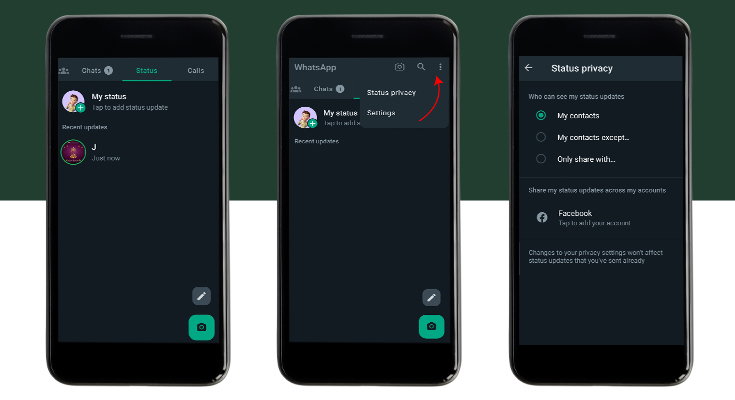
To hide your status from specific contacts:
- Go to “Status Privacy” in settings.
- Select who can’t see your status updates.
How to Mute WhatsApp Story
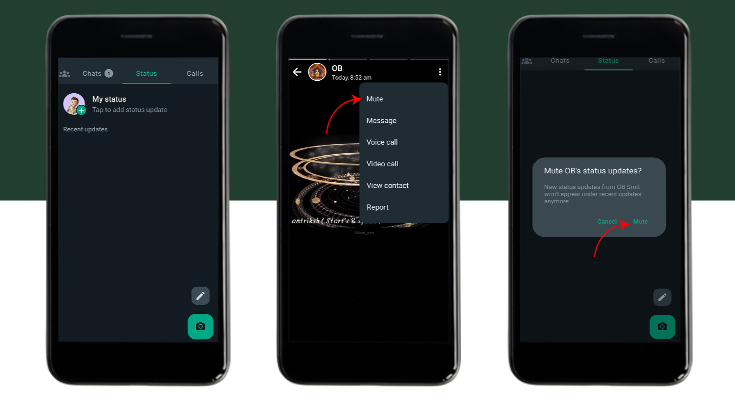
To mute status updates from a contact:
- Long-press on their status.
- Choose “Mute.”
or else:
- Tap on the Status tab
- Open the Status of the person you want to Mute
- Then Tap on the Three Dots section in the top right corner of the screen
- Lastly, select the Mute option
How to Post Multiple Photos on WhatsApp Story
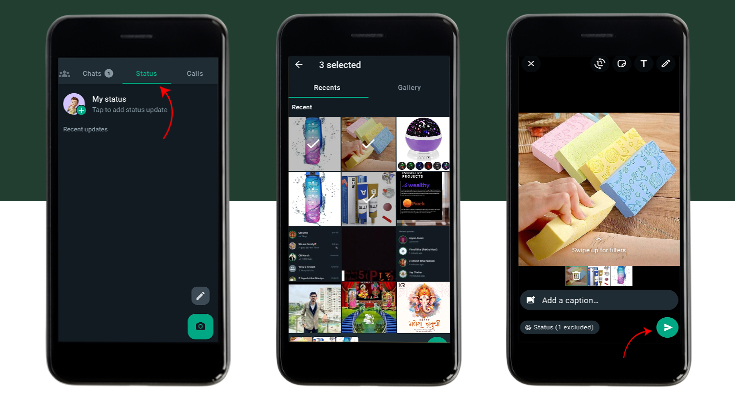
To share multiple photos:
- Create a photo status.
- Tap the camera icon again to add more photos.
How to Delete WhatsApp Status
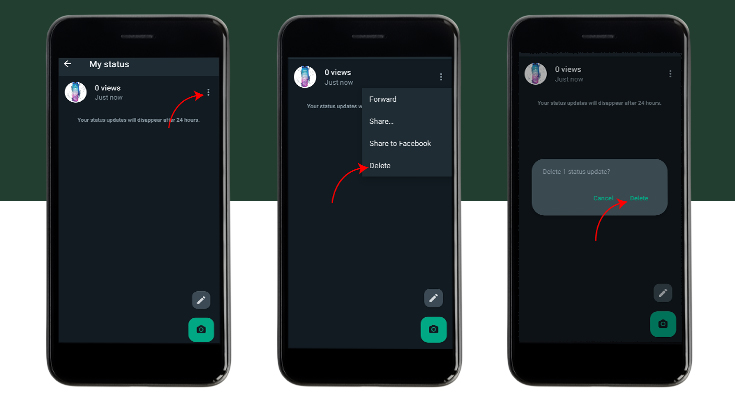
To remove a status:
- Go to the Status tab.
- Tap the three dots next to your status.
- Select “Delete.”
How to Share Your WhatsApp Story Update to Other Apps
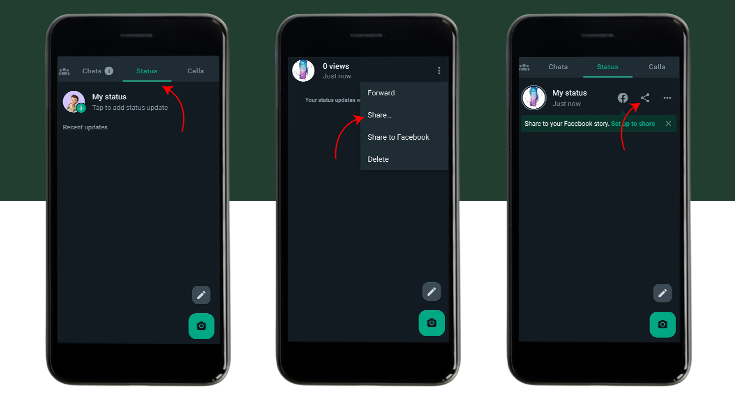
To share your story outside of WhatsApp:
- Open your status.
- Tap the share icon and choose the app to share with or click the “three dots” icon next to your status then select share.
Conclusion
WhatsApp Story is a fantastic feature that lets you share your life’s moments, thoughts, and creativity with your contacts.
Whether you want to post a funny joke, share a beautiful photo, or express your mood through GIFs, WhatsApp Story has got you covered.
With this guide, you’re all set to make the most of this exciting feature.
FAQ’s
Yes, you can. WhatsApp provides a list of contacts who have viewed your story.
Yes, you can reply to a status by tapping on the “Reply” option below it.
WhatsApp Story updates automatically disappear after 24 hours.
Yes, you can mute status updates from specific contacts in your settings.
Yes, WhatsApp Story is primarily for text, photos, videos, voice, and GIFs.